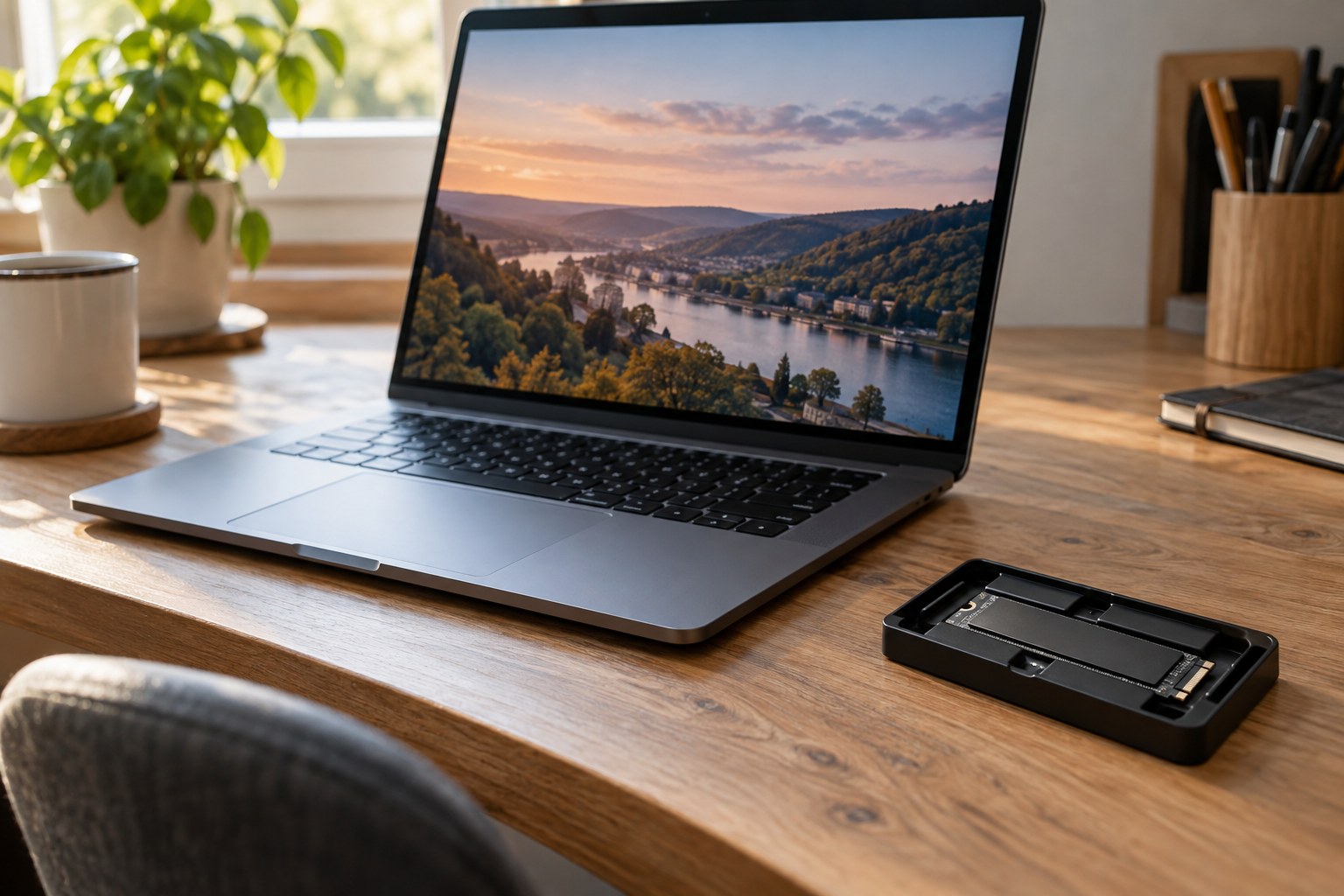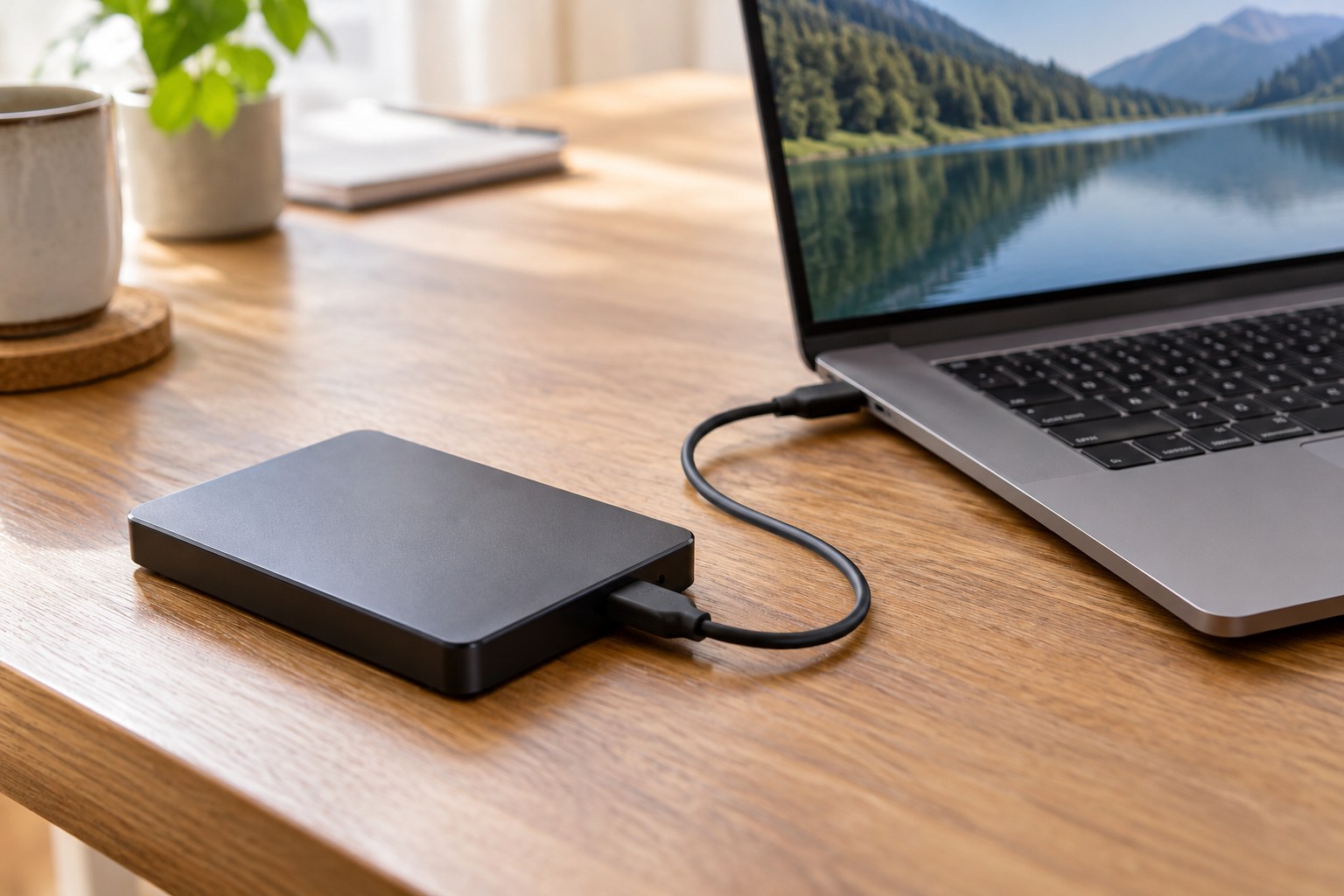
An external drive becomes a backup through a regularly performed process. If files are copied to it and then deleted from the computer, it may hold the only original. Begin by identifying which data should remain available as an additional copy and how recovery would work.
Distinguish backup from relocation
List important folders and the location of their current versions. These may include documents, photographs and projects. A copy on another device serves a different purpose from a relocated archive. Keep the distinction visible so that extra capacity is not confused with additional protection.
Check whether important material exists only in an online account or is actually available locally. The chosen method must capture those contents. A drive cannot copy information the backup application cannot access. Do not assume a visible folder name in a file manager establishes that the complete contents are included.
Choose the process before the hardware
Select a method appropriate to the operating system and your abilities. Apple, for example, describes suitable destinations and external storage for Time Machine. Check the current requirements for your system. Do not apply instructions for another operating system or older application without verifying them.
Decide whether you need previous file versions or only a current additional copy. This affects capacity and operation. Synchronisation may propagate changes you later regret; it is not automatically equivalent to a backup retaining earlier versions. Read precisely what the chosen process provides.
Plan capacity with growth
Establish the size of the data and plausible growth. Where several versions will be retained, follow the backup software's capacity guidance. Do not choose only by the cheapest price per terabyte. The drive needs to accommodate the complete planned backup with reasonable reserve.
Imagine an ordinary month of new photographs or projects. A drive that only just fits initially may soon require further decisions. Conversely, substantial spare space cannot replace a working routine. A large drive that never gets connected does not protect newly created files. The useful capacity is the amount that supports an ongoing process you will actually perform.
Check the connection and location
Verify computer and drive ports and the supplied cable. A required adapter belongs in the purchase cost. A desktop drive with separate power also needs an appropriate position and socket. A portable version brings different considerations around size and protected transport.
Decide when the drive will be connected. Automatic backups require availability according to the selected method. If it is disconnected for storage afterwards, follow the system's safe-removal process. A permanent position beside the computer simplifies access but is not independent storage against every possible cause of loss.
Include a recovery check
Plan a small harmless test using a file created specifically for that purpose. Confirm that it was backed up and can be restored to a separate location. Do not overwrite important originals during testing. An understandable recovery route provides stronger evidence than a green status symbol whose meaning is unclear.
Record the drive used, the application creating the backup and when the process was last checked. If encryption is enabled, the necessary password or recovery key must remain securely available independently. A protected drive without accessible credentials will not help when recovery is needed.
Choose around the job
Compare appropriate drives by sufficient capacity, compatible connection, handling and offered service terms. Do not infer a guaranteed lifetime from construction or price. Even new storage can fail, so value lies in the overall backup arrangement rather than supposedly infallible hardware.
Buy the drive you can genuinely use regularly. A straightforward understood backup with checked recovery is more useful than a large collection of storage without a clear process. The purchase is complete when sufficient space exists and you know how important files would become accessible again. Keeping those two conditions together prevents capacity from becoming a substitute for recoverability.
A reminder can support the routine but is not itself a completed backup. After changing the computer setup, check that intended folders are still included. Moving files to a new location can alter a selection that previously covered everything important.